Using the object context menus
Context menus, that you can open by right-clicking on objects
Every object in JewelSuite Geomechanics has its own context menu that you can display by right-clicking on it in the JewelExplorer or in your 3D View.
The object context menus cover such tasks as changing the display settings, merging the object with another object, creating another type of object based on the object or opening historical or statistical data.
Grouping
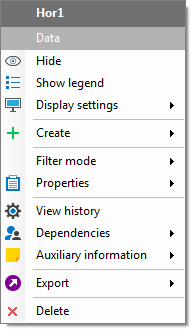
The context menus are organized into groups separated by lines
Each object context menu is headed by the name of the object, with its location underneath.
To make it easy for you to find what you are looking for, the object context menus are arranged in the following groups, in this order from top to bottom:
The top Visual Settings group includes visibility (of the object itself and related objects) and display settings such as color, transparency, contours etc.
The second Edit/Duplicate/Create group allows you to edit the object (generally via a form) or duplicate it. A Create submenu allows you to generate other objects based on the object.
Below this, the Actions/Tools/Operations group allows you to merge, split or perform other operations on the object, and also has a Properties menu where you can select a property.
The Information group includes items that show information about the object, such as history information and reports. All menu items that do not belong in other groups are also included in this group.
The Export group includes items relating to exporting the object.
The Delete group, at the bottom of the menu, allows you to delete or remove the object.
Items and icons
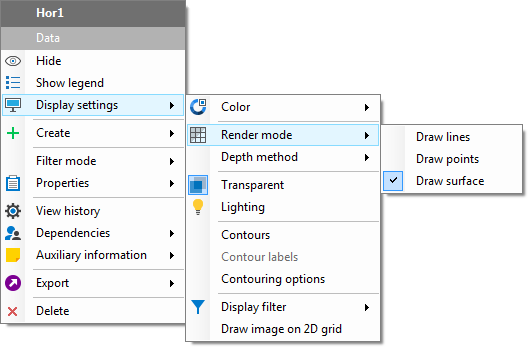
The blue box around the Transparent icon and the tick next to Draw surface indicate that these options are selected click to enlarge
The object context menus consist of three types of menu item; action items that trigger some action, items that turn settings on or off (an icon indicates whether it is currently on or off), and those that open submenus, from which you can make a further selection. Some submenus are special 'radio submenus', only one subitem can be selected at any one time. On other submenus, you can select multiple items. Again, an icon indicates which are selected.
Disabled
Some menu items may only be available under certain circumstances - a Merge option, for example, will be disabled if there are no suitable other objects to merge the object with.